
BriefBuilder’s conversion feature allows you to change the unit of measure of a property and to recalculate the associated values automatically.
This can be relevant when you want to use your requirements model in a region where they are using different units of measure (e.g. square feet instead of square meters) or when you want to make changes to the units of measure in existing models (e.g. expressing sizes in millimeters instead of meters).
The conversion of units of measures can be done in the standard property settings for requirements, which can be found in the settings menu.
How to convert units of measure
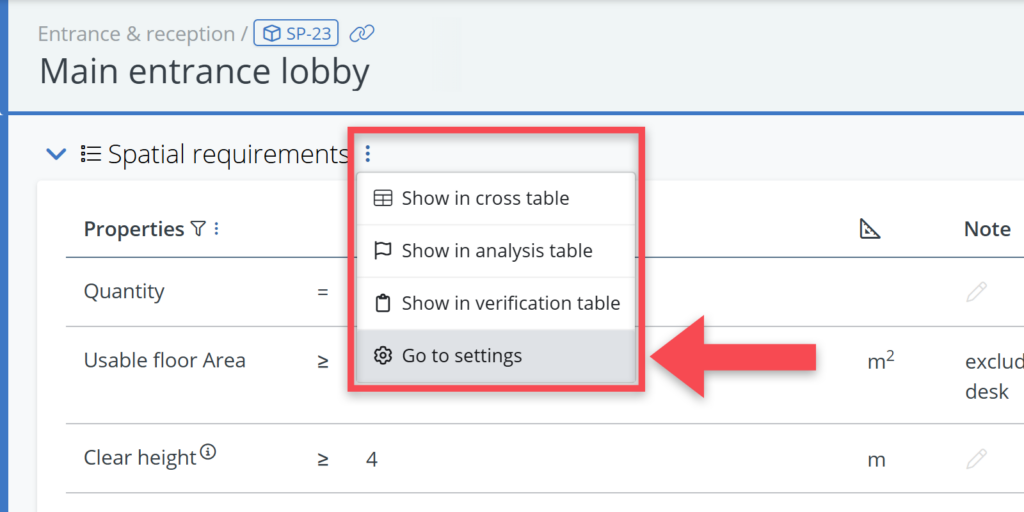
1) Go to the settings menu to find the relevant property (Settings > Attributes > Requirements), or go there by clicking on the settings icon in the More options menu, for the relevant table on an object’s detailview.
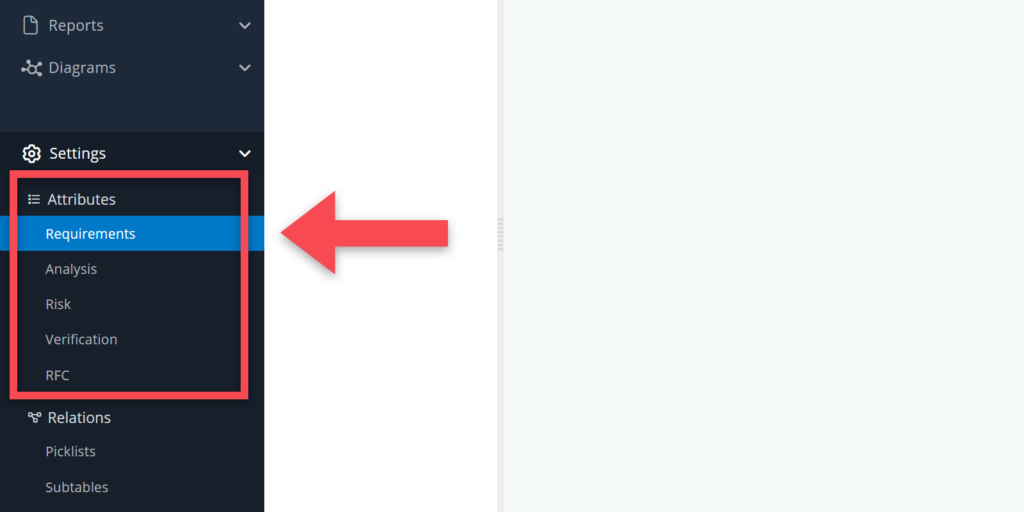
2) Select the relevant object type and property table.
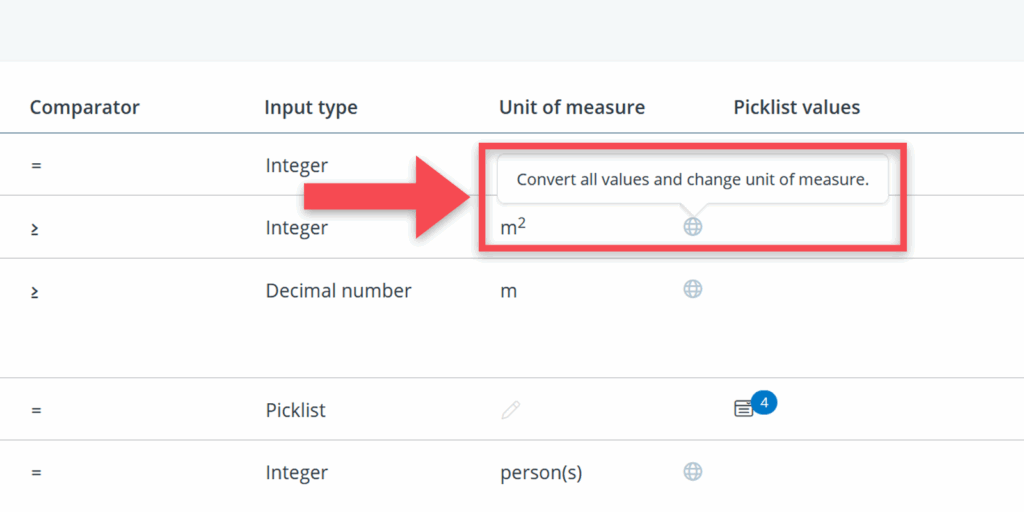
3) In the property table, go to the property for which you would like to change the unit of measure.
4) Go to the unit of measure column and click the converter button right next to it.
5) Select the desired conversion (note that you can search in the list of conversion types).
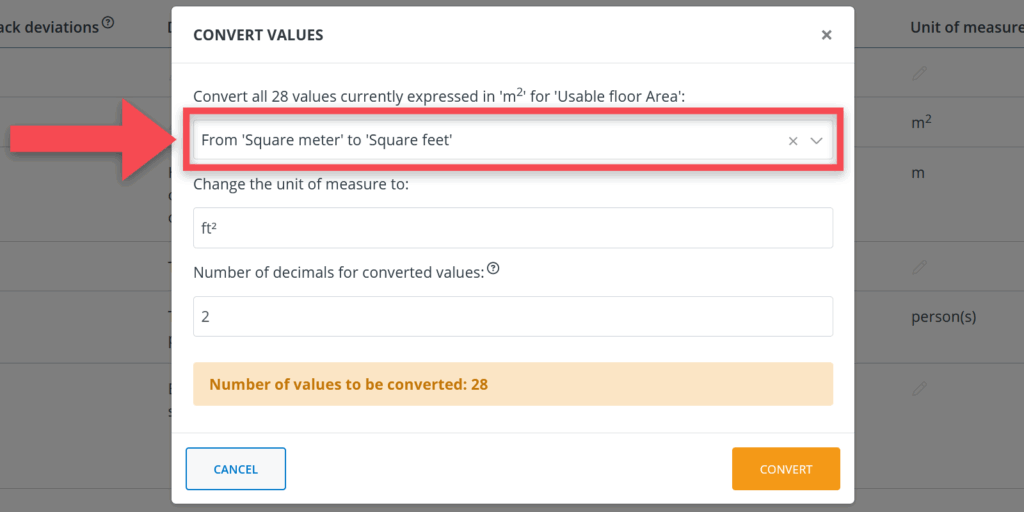
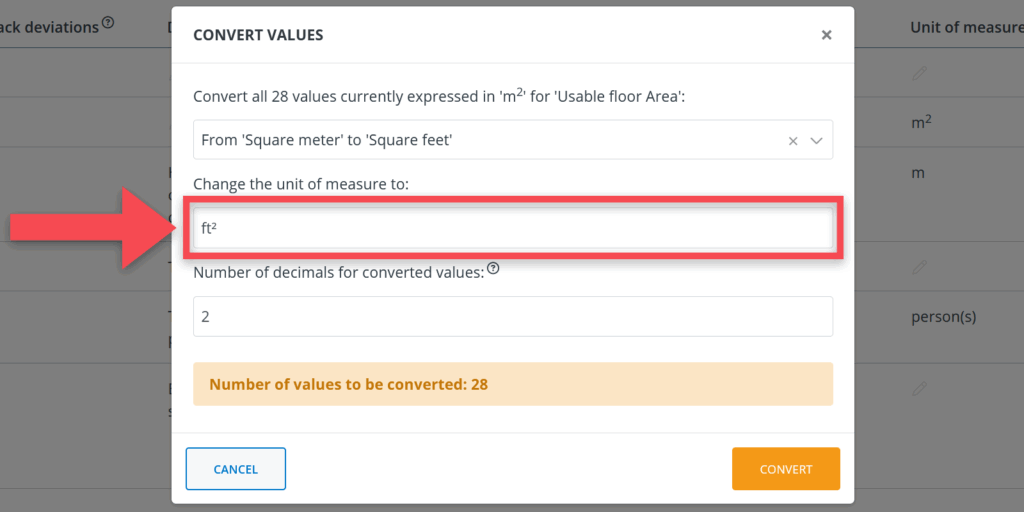
6) Optional: change the expression of the unit of measurement (UoM).
Note: this can be relevant if you want to express the UoM in a different way that the application proposes. For example if you prefer to “sqm” instead of the “m2”.
7) Optional: adjust the number of decimals for the converted values.
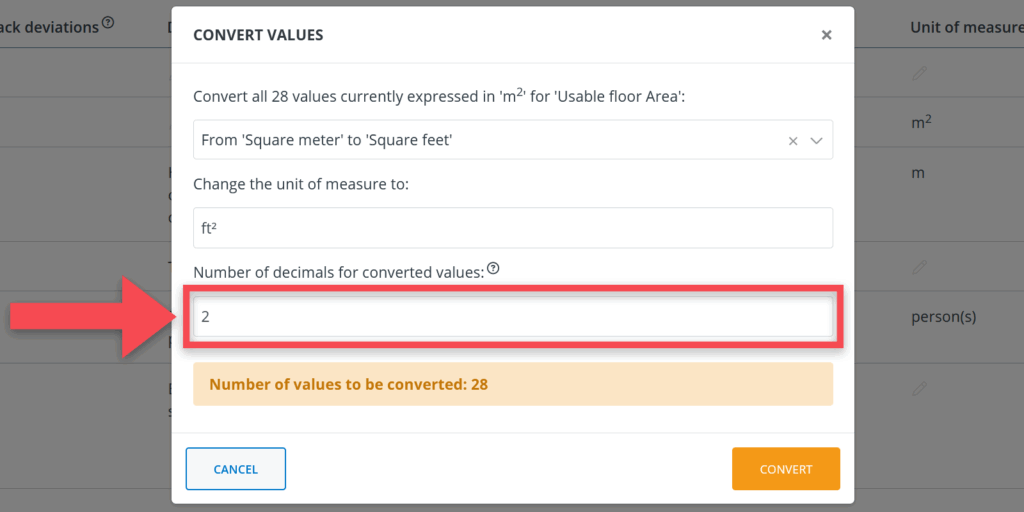
8) Click Convert to complete the action.
When clicking on history button (at the project home, or at an individual object), you will see that the conversion has been made.