
In BriefBuilder, there are two ways to navigate through a tree and the details views of the objects in that tree: click mode and scroll mode.
The default mode is the click mode: when you click on an object in the tree, you get to see the object’s detail view on the right hand side.
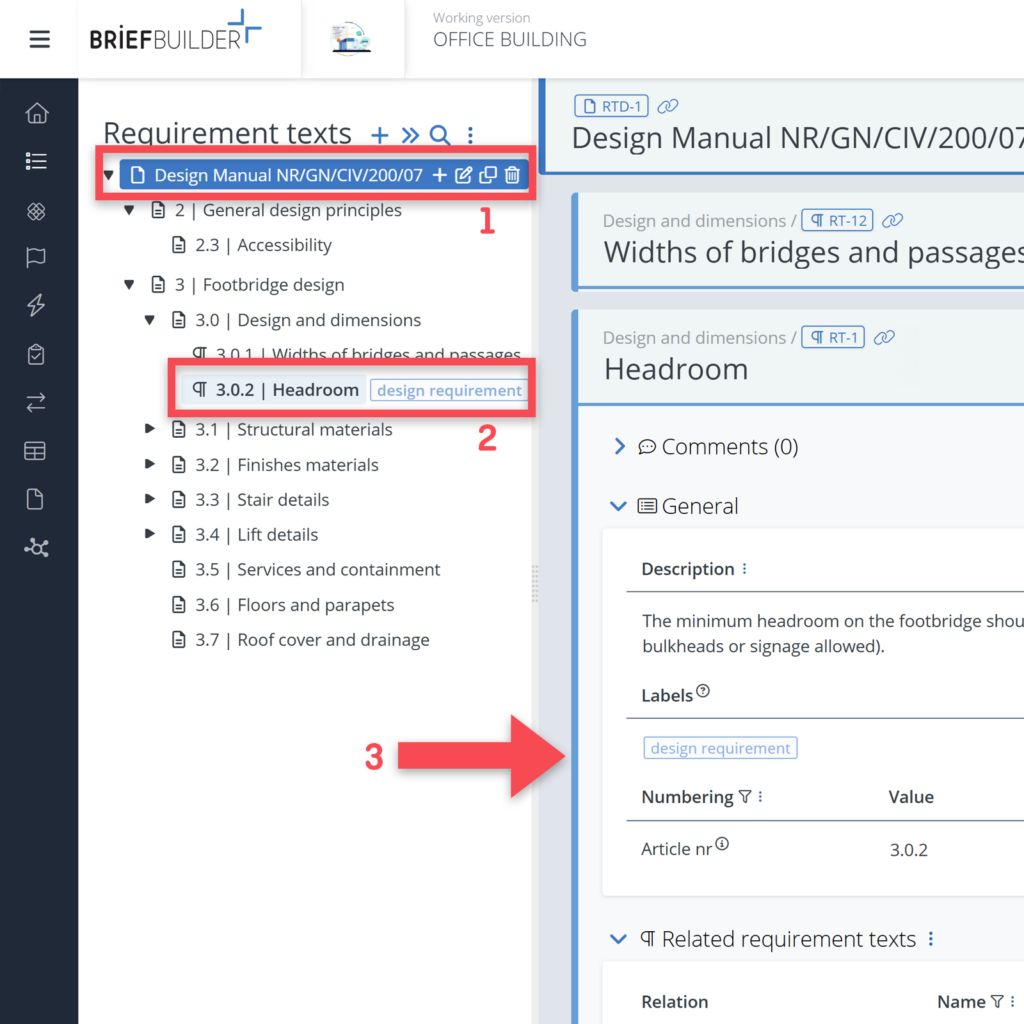
The alternative is scroll mode: when you click on an object in the tree, you get to see the object’s detail view plus the detail views of all the objects underneath that object. It is a mode that is close to how you would navigate in a document.
Activating scroll mode
Scroll mode can be activated (and deactivated) via the More actions menu, at the top of the tree, by clicking the button at the top of a tree.

How it works
The scroll mode works from the object that you have selected in the tree. It displays the detail view of that object plus, if you scroll down, the detail views of all the ‘child’ objects.
For example: if you select the object Building in the Spaces & locations tree, scrolling will include the detail views of all groups and spaces that are part of that building.