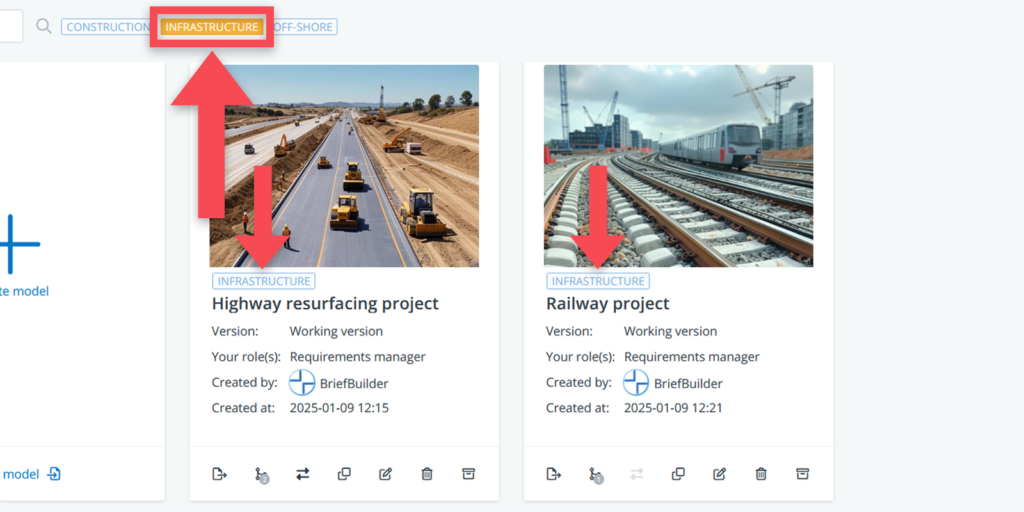
When working with multiple project models in your environment, you might want to categorize these by means of tags. Tags are a flexible means to identify, group, and filter project models within your environment.
Depending on the type of models in your environment, you may, for example, want use tags that indicate project type (e.g. health care, infrastructure, education), region (e.g. NL, UK, US) or status (e.g. tender phase, under construction, completed).

Create, edit and remove tags
To add tags to project models, do the following:
- Go the project models overview page (by clicking on the BriefBuilder logo in the upper left corner of your screen)
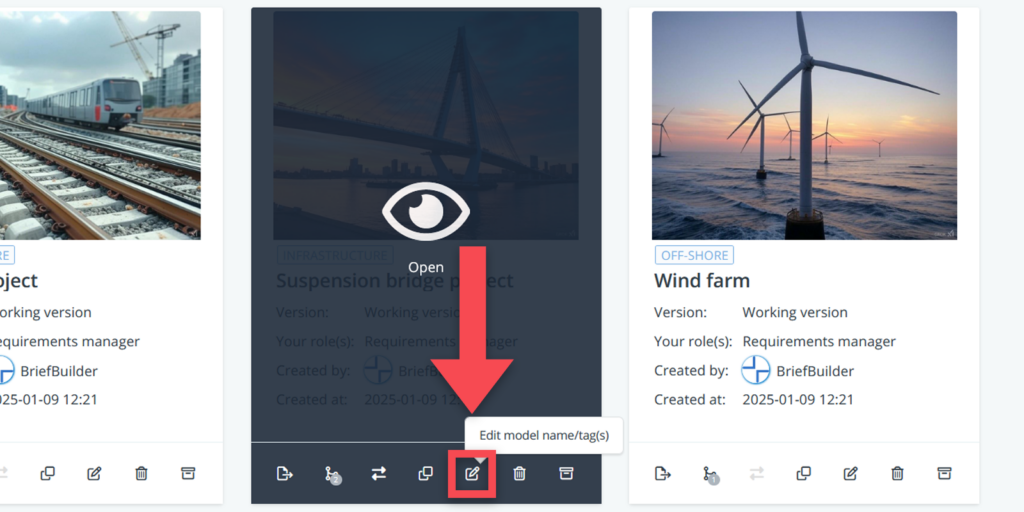
- Click on the edit model name/tags button at the bottom of the project tile.
- Select an existing tag from the list, or
- Create a new tag by typing in the textbox and click on add
- Confirm by clicking on save.

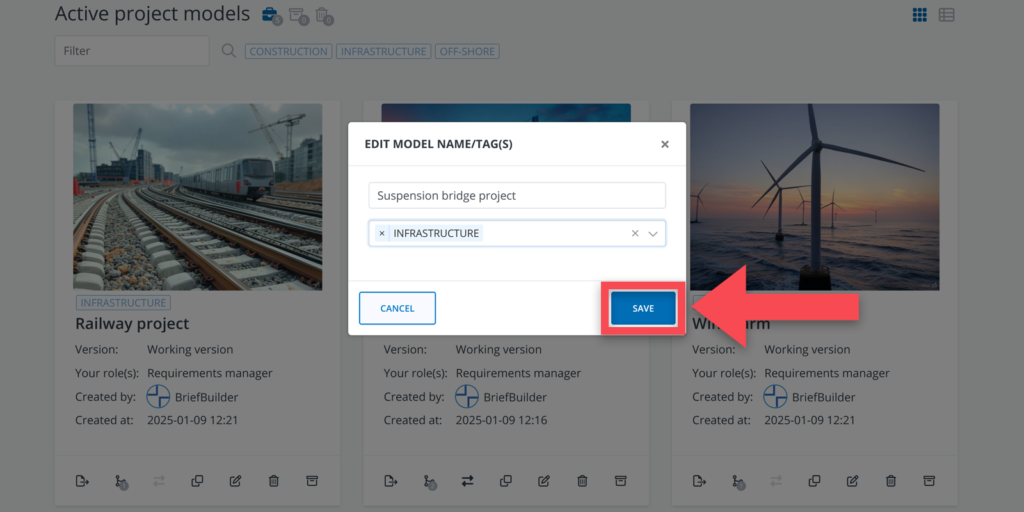
To remove a tag from a project model; navigate back to edit model name/tags and click on the small x next to the tag.
Filtering tags
To filter project models by using the tags, click on a tag at the top of the overview page (next to the search button, see screenshot below). When selecting a tag, you will get to see all project models with that particular tag. Clicking it again will unselect the tag and show all the project models.