
The Word reports generated from the BriefBuilder application have a standardized styling. It is possible to modify the report’s content (which tables and which objects should be in) and it is possible to change the picture and logo on the front page, but fonts, colors and table widths are fixed.
It is obviously possible to change the styling in a Word report in Word itself. All report parts (headers, table contents, notes, …) have their own style in Word and can thus be adjusted per part.
Another option is to apply a Word styling template to a Word report, which enables you to create reports with your own branding and styling applied to them – by using a predefined template in Word itself.
Below, we’ll briefly explain both options. For more detailed information it is best to go to Microsoft’s own support pages as it concerns features within the Word application.
Modifying Word styles
Once you have a Word report (more info about that here), open it and go to the Home tab in the ribbon. There, you will find the Styles list.
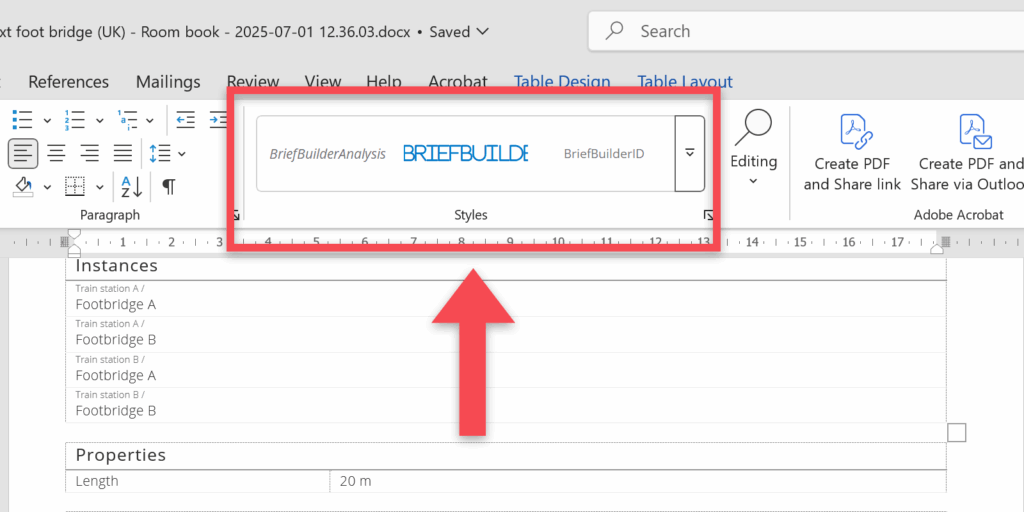
To see which style is applied to a specific bit of text, simply click on a header, paragraph, or note in the document; the corresponding style will be highlighted in the Styles list.
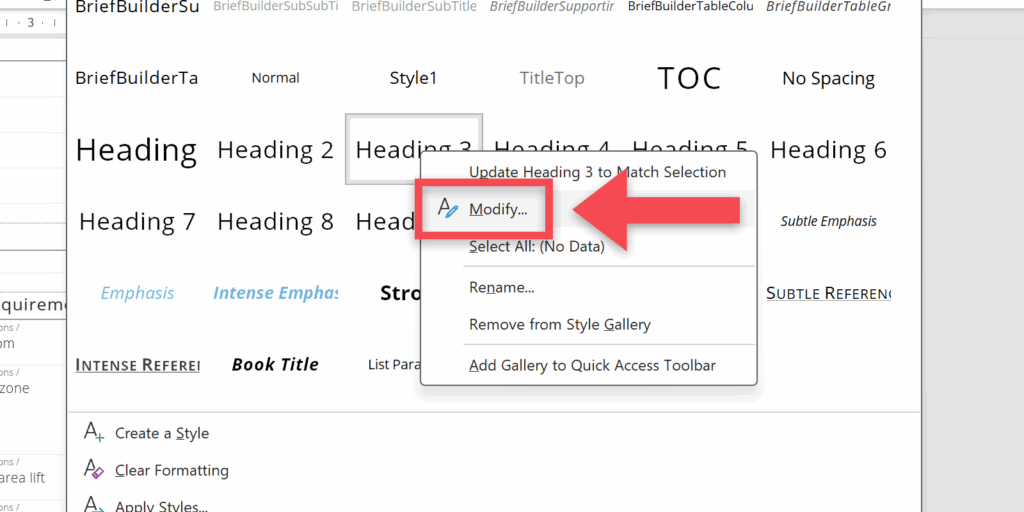
Right click on the style and click on Modify. This will bring you to the style modification menu and you can start making changes to it. How to use this Word feature is explained in detail on the Microsoft support page.
Use a Word template
If you would like to fully customize the document and do so automatically, it will beneficial to use a word styling template. This is a custom file that you apply to a Word report and it will automatically apply the configured styling. This is particularly useful when changing the Word styling is a repetitive task.
To help with customizing styles and templates we have provided a document with every header and text style in use by Word reports. You can use this for reference and create your own template from it.
We have written a short guide below, on how to create and apply Word templates to BriefBuilder Word reports. In this guide we will use the provided template to apply styling to a BriefBuilder Word report.
Editing and saving a Word template file:
- Start off by downloading the style template above and open it in Word.
- With your cursor, click on headers or text to see what style is used for it.
- Right click a style and click on Modify to make the changes you want.
- To save the file as a template, go to the File tab in the top left corner and select Save as.
- Now make sure to select template in the dropdown for Save as type.
More details on the Microsoft support page.
Applying a Word template to a BriefBuilder Word report:
- Open the File tab in the top left corner > go to Options > click on Add-ins
- At the bottom next to Manage select Templates from the drop-down and click on Go.
- A pop-up window should open for templates and add-ins. Select your template or add it by clicking on the Add button.
- Make sure to check the box to Automatically update document styles.
- Press OK when ready.
More details on the Microsoft support page.